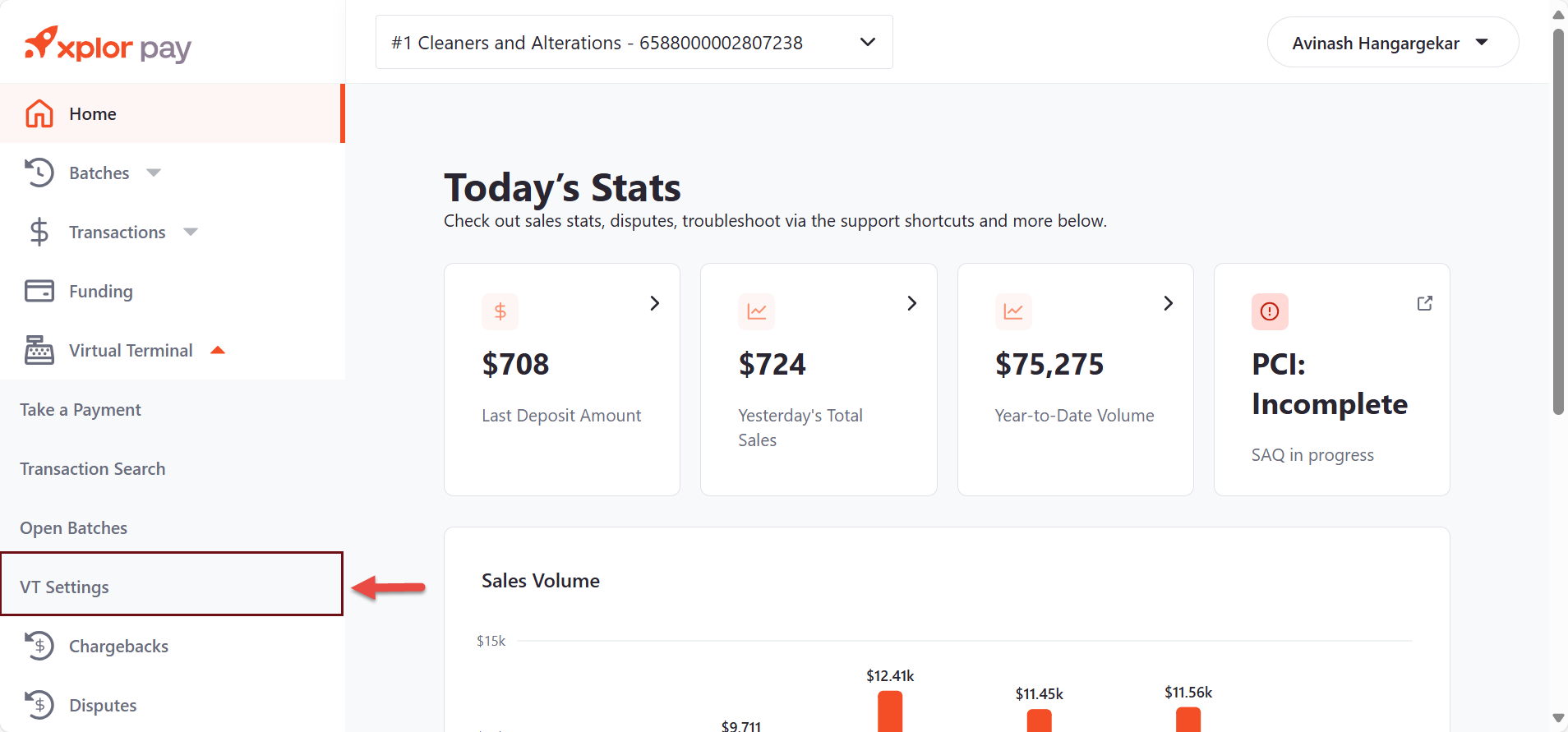
Screenshot: Merchant Portal homepage
Screenshot: Merchant Portal homepage
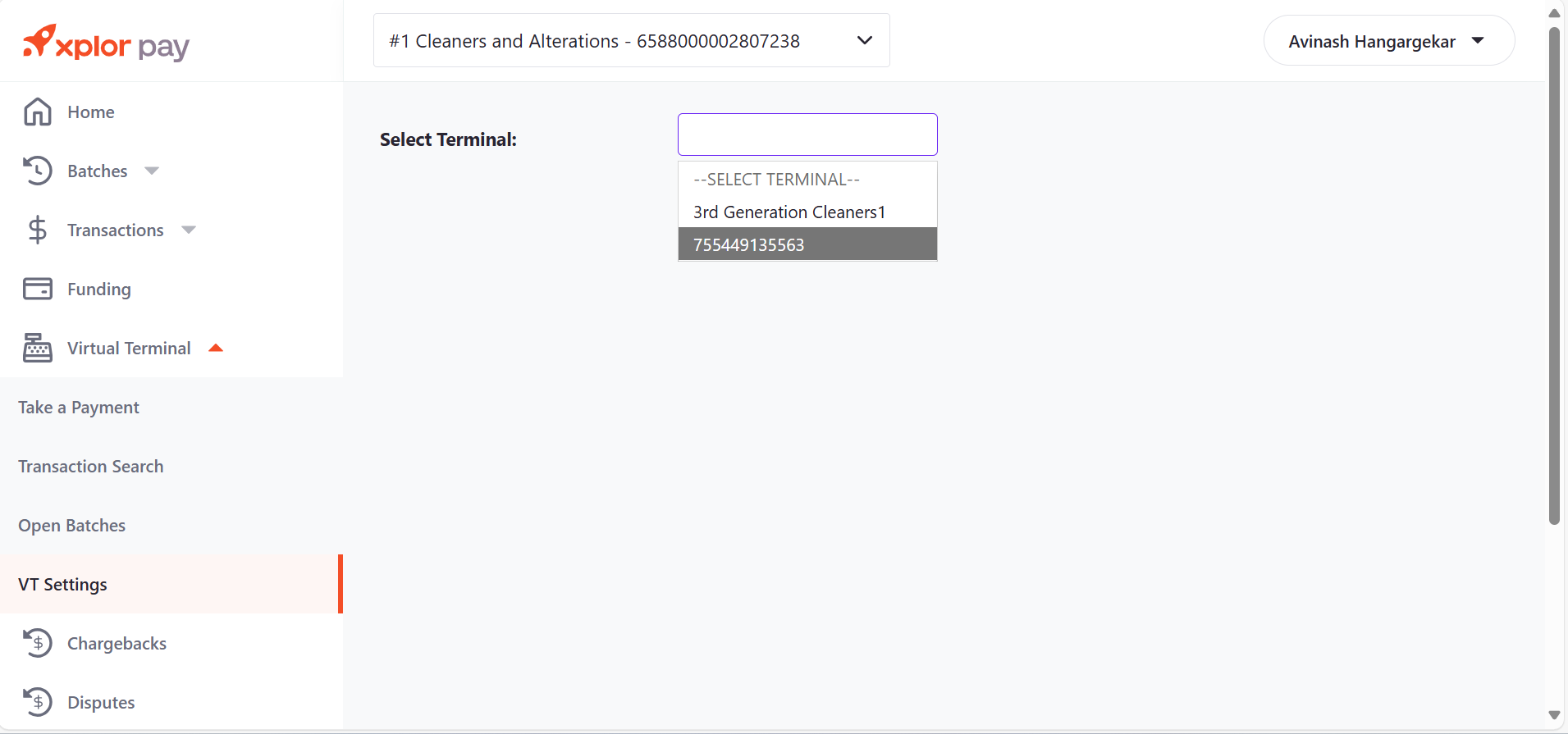
Screenshot: Select Terminal list
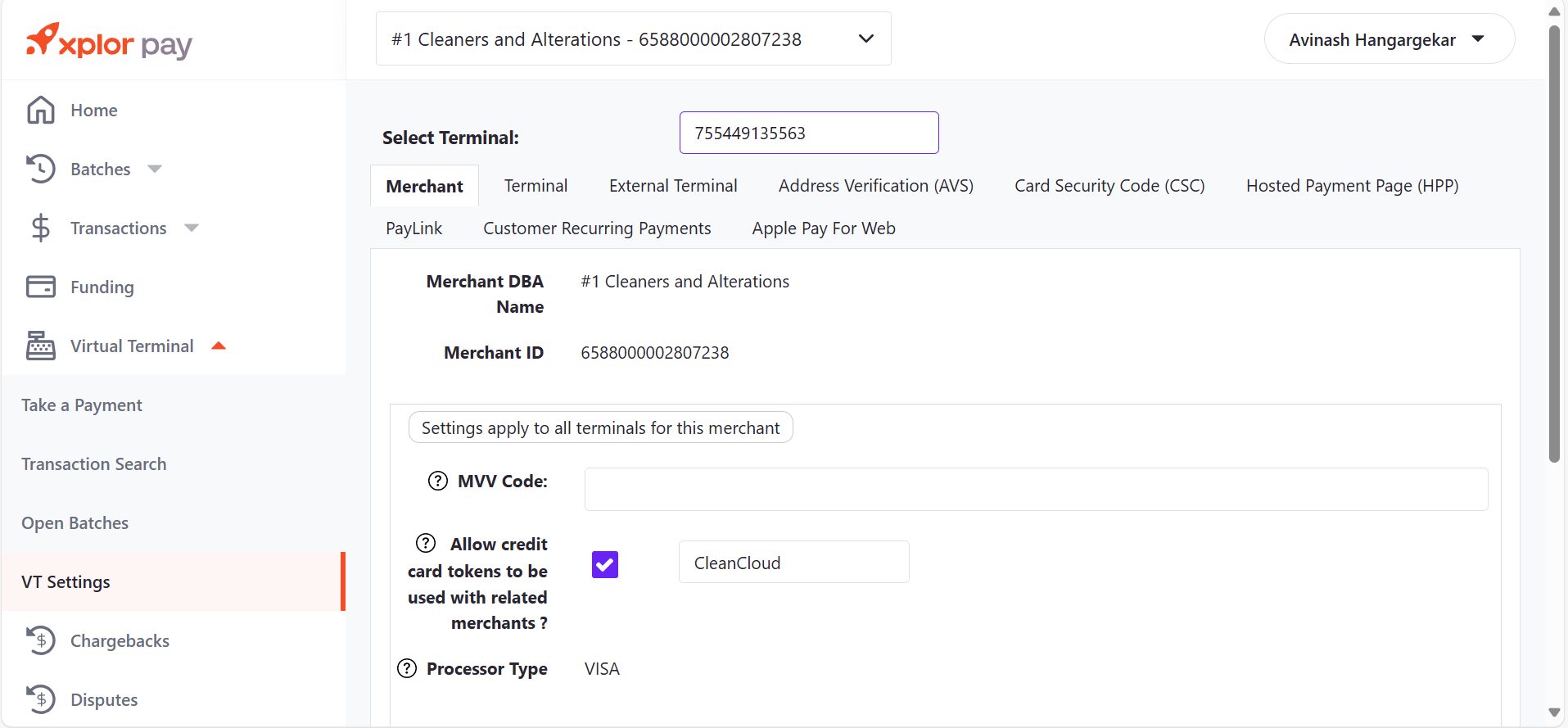
Screenshot: Merchant tab
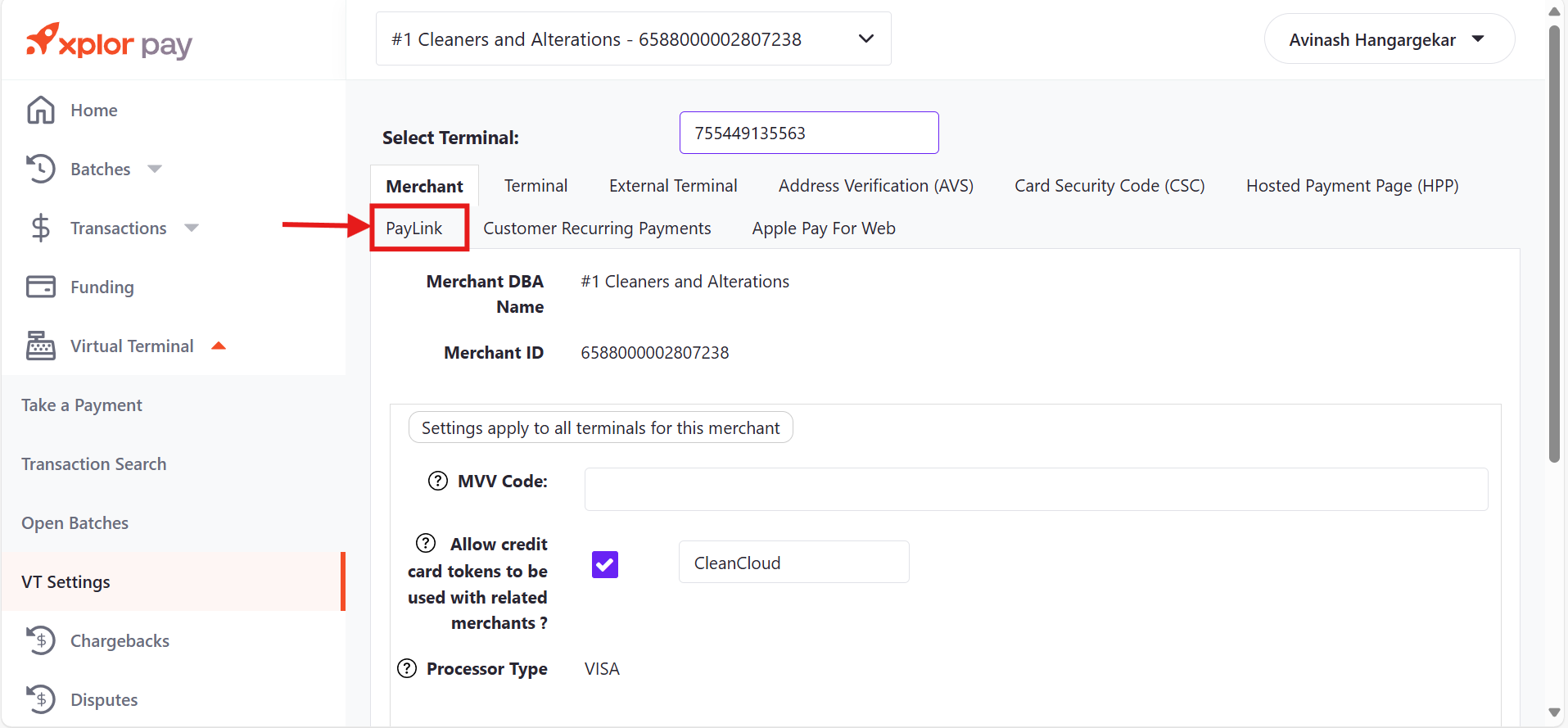
Screenshot: Merchant Settings
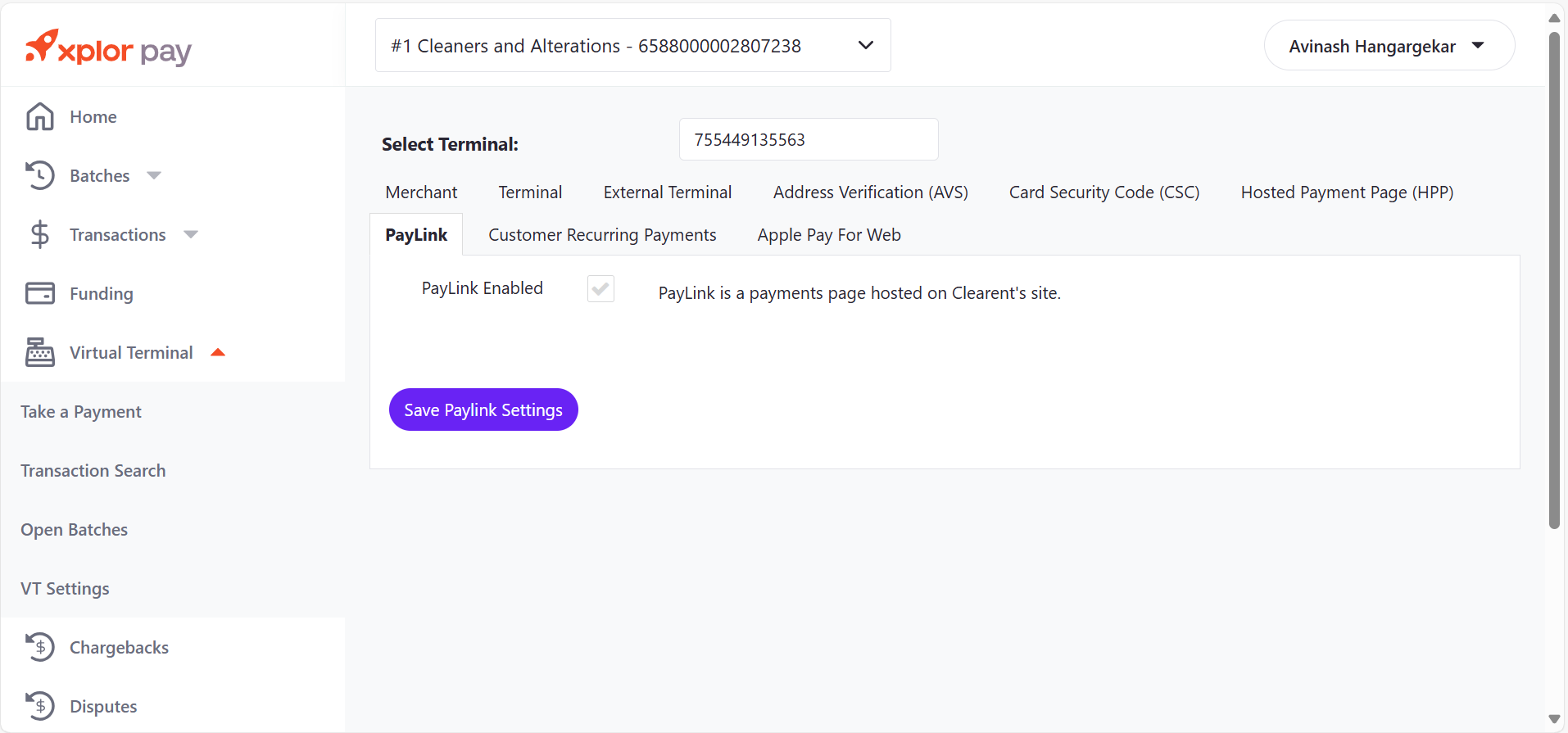
Screenshot: Paylink tab
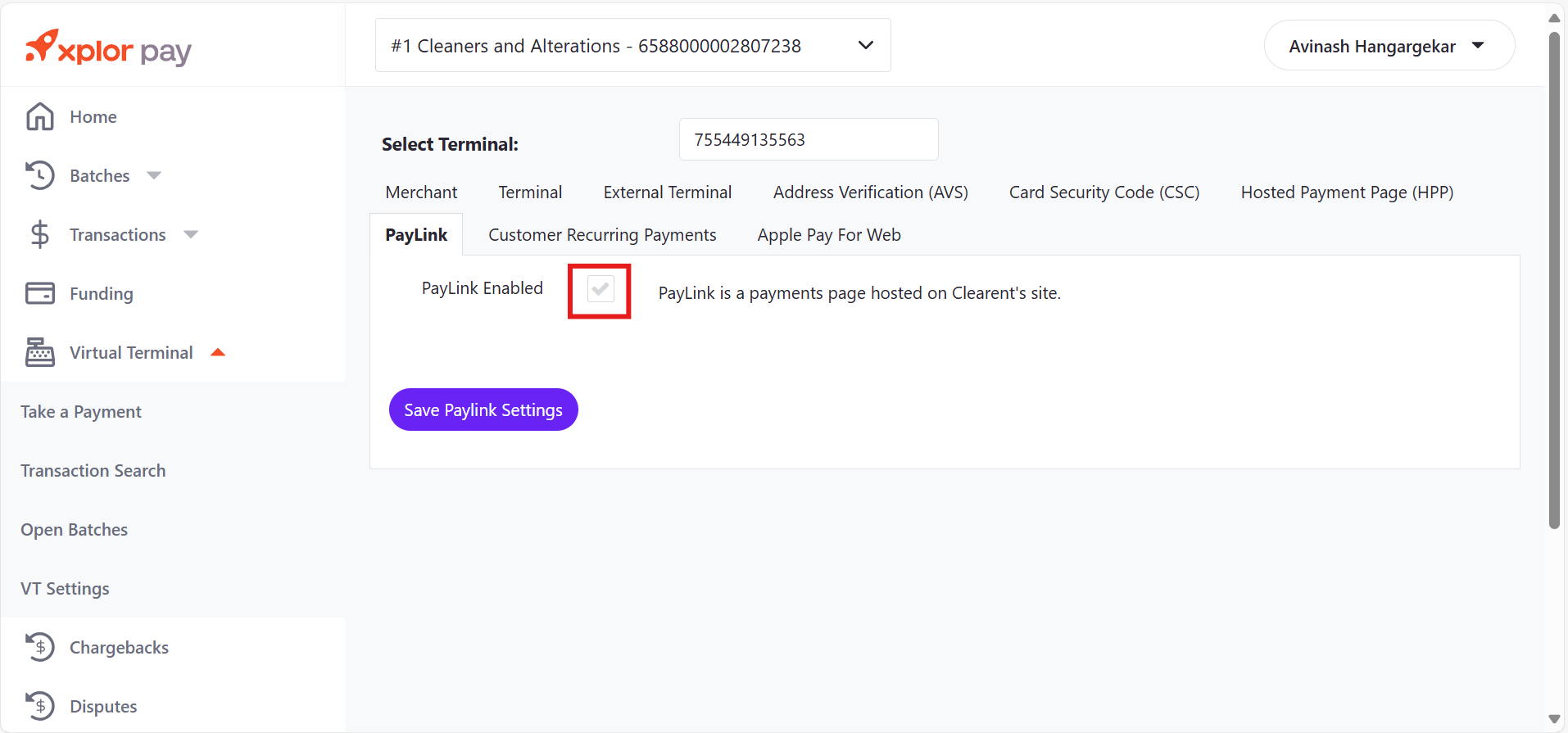
Screenshot: Paylink Settings
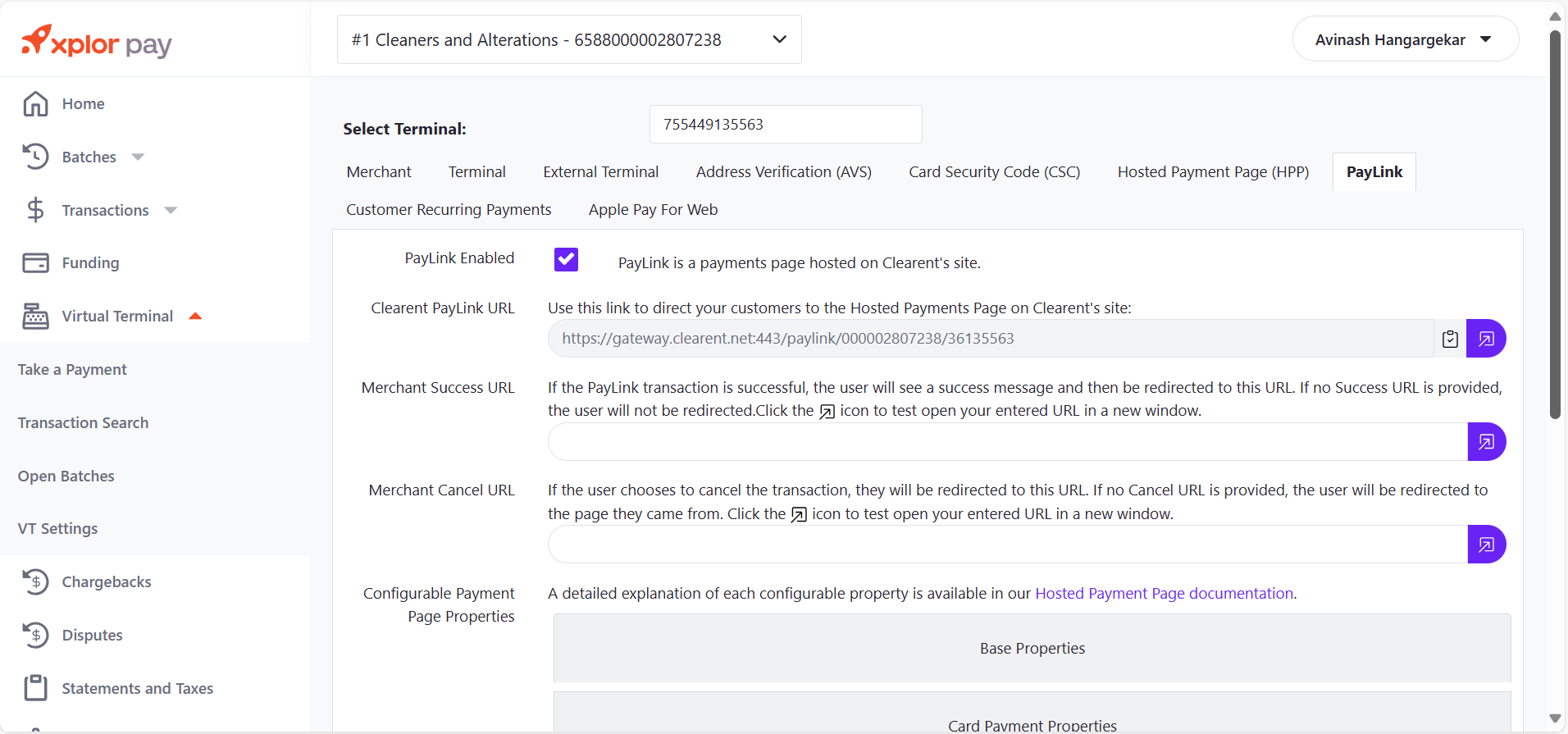
Screenshot: Paylink configuration settings
| Setting | Description | Editable? |
|---|---|---|
| Paylink URL | The Paylink URL field displays a default link. The URL includes a unique ID that retrieves the merchant ID and terminal ID. Click the
| Not editable |
| Merchant Success URL | Enter the URL in the Merchant Success URL field to redirect customers after a successful payment on the Xplor Pay site.
| Editable |
| Merchant Cancel URL | Enter the URL in the Merchant Cancel URL field to redirect customers after a canceled payment on the Xplor Pay site.
| Editable |
| Configurable Payment Page Properties | Use the Configurable Payment Page Properties settings to define the properties displayed on the payment page hosted on the Xplor Pay site when customers click the Paylink URL. Payment page property settings are set to default when Paylink is enabled.
| Editable |
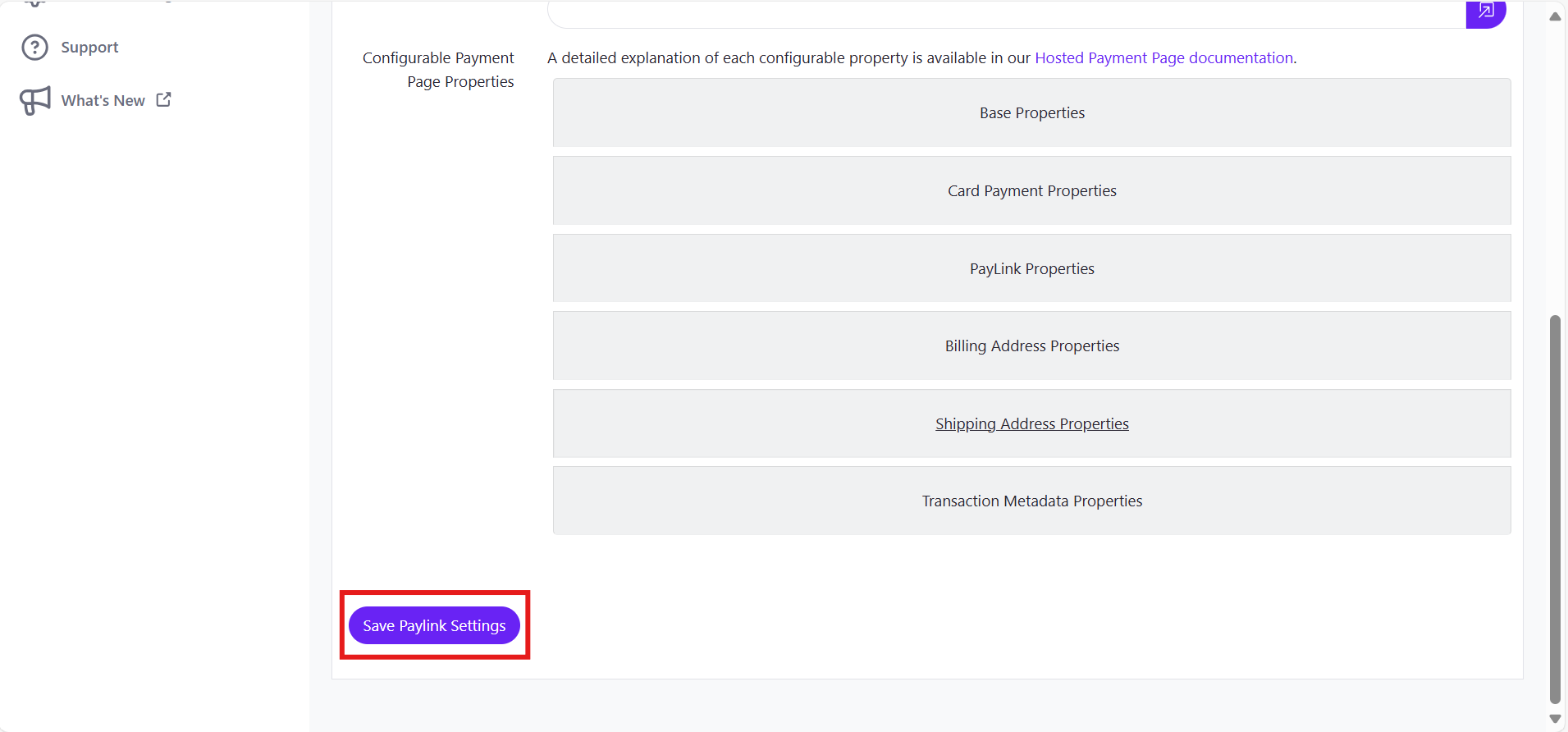
Screenshot: Save Paylink Settings button
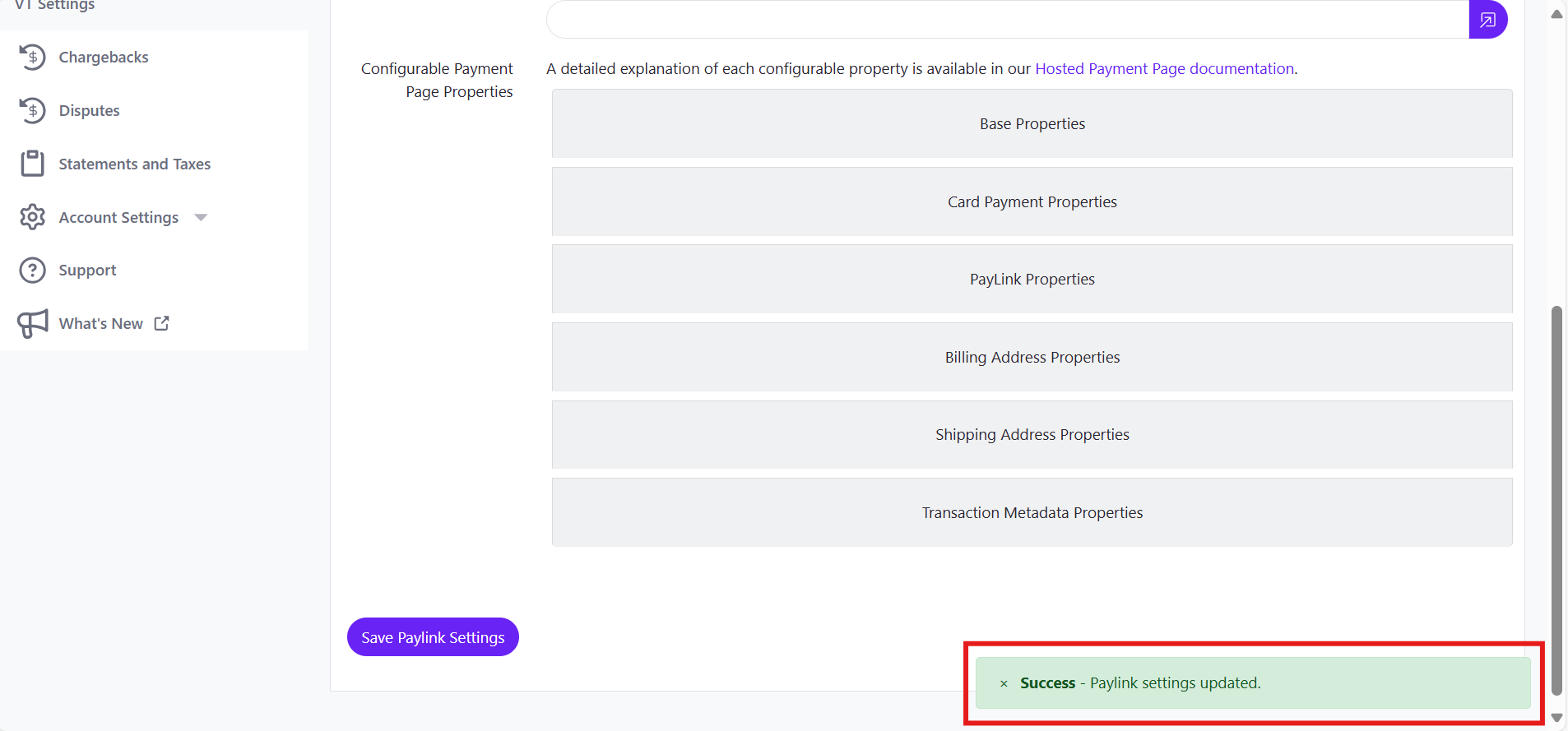
Screenshot: Paylink Settings update notification
 icon next to the Payment URL box to copy the link to clipboard.
 icon next to the Payment URL box to go to a payment page hosted on the Xplor Pay site.