# Viewing Application Summary
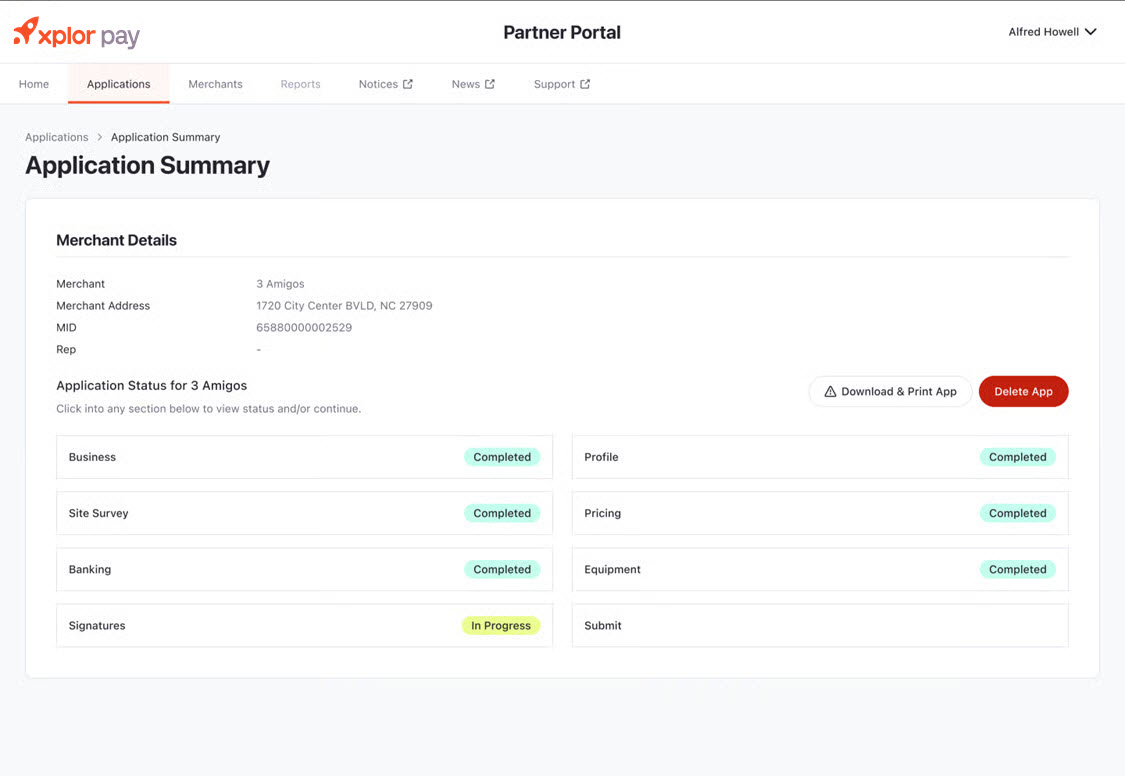
The **Application Summary** page provides an at-a-glance view of the merchant application’s progress in the **Partner Portal**. This page allows users to track the status of different sections, access merchant details, and manage the application as needed. Users can download the application or delete it if required.
{% stepper %}
{% step %}
**Accessing the Application Summary Page**
To navigate to the **Application Summary** page:
* Log in to the **Partner Portal**.
* Click on **Applications** in the top navigation menu.
* Select the desired merchant application from the list.
* The **Application Summary** page will display the details and statuses of each section.
{% endstep %}
{% step %}
**Merchant Details Section**
The **Merchant Details** section provides essential information about the merchant, including:
* **Merchant Name** – Displays the registered name of the merchant.
* **Merchant Address** – Shows the merchant’s business address.
* **MID (Merchant Identification Number)** – A unique identifier assigned to the merchant.
* **Rep** – Displays the assigned representative, if applicable.
{% endstep %}
{% step %}
**Application Status Section**
The **Application Status** section outlines the progress of each required step in the application process. Each section displays a status indicator:
* **Completed** – The section has been successfully filled and submitted.
* **In Progress** – The section is partially completed and requires further action.
* **Pending** – No information has been provided yet.
{% endstep %}
{% step %}
**Status Categories**
* **Business** – Indicates the completion status of the merchant’s business details.
* **Profile** – Displays the status of profile-related information, including business structure and ownership details.
* **Site Survey** – Shows whether the required site survey has been completed.
* **Pricing** – Indicates if pricing details have been configured.
* **Banking** – Displays the status of bank account details and verification.
* **Equipment** – Reflects whether equipment has been selected and assigned.
* **Signatures** – Indicates if all necessary signatures have been collected and submitted.
* **Submit** – The final step, where users can review and submit the application for processing.
{% endstep %}
{% step %}
**Managing the Application**
The **Application Summary** page includes the following management options:
* **Download & Print App** – Allows users to download a copy of the application for records or submission.
* **Delete App** – Provides an option to remove the application permanently from the system. Users should confirm before proceeding, as this action is irreversible.
{% endstep %}
{% endstepper %}
## Next Steps
* If any section is marked as **In Progress** or **Pending**, users should click on the respective section to complete the required information.
* Once all sections display **Completed**, navigate to the **Submit** section to finalize and submit the application.
* Users should verify all details for accuracy before submission to prevent processing delays.